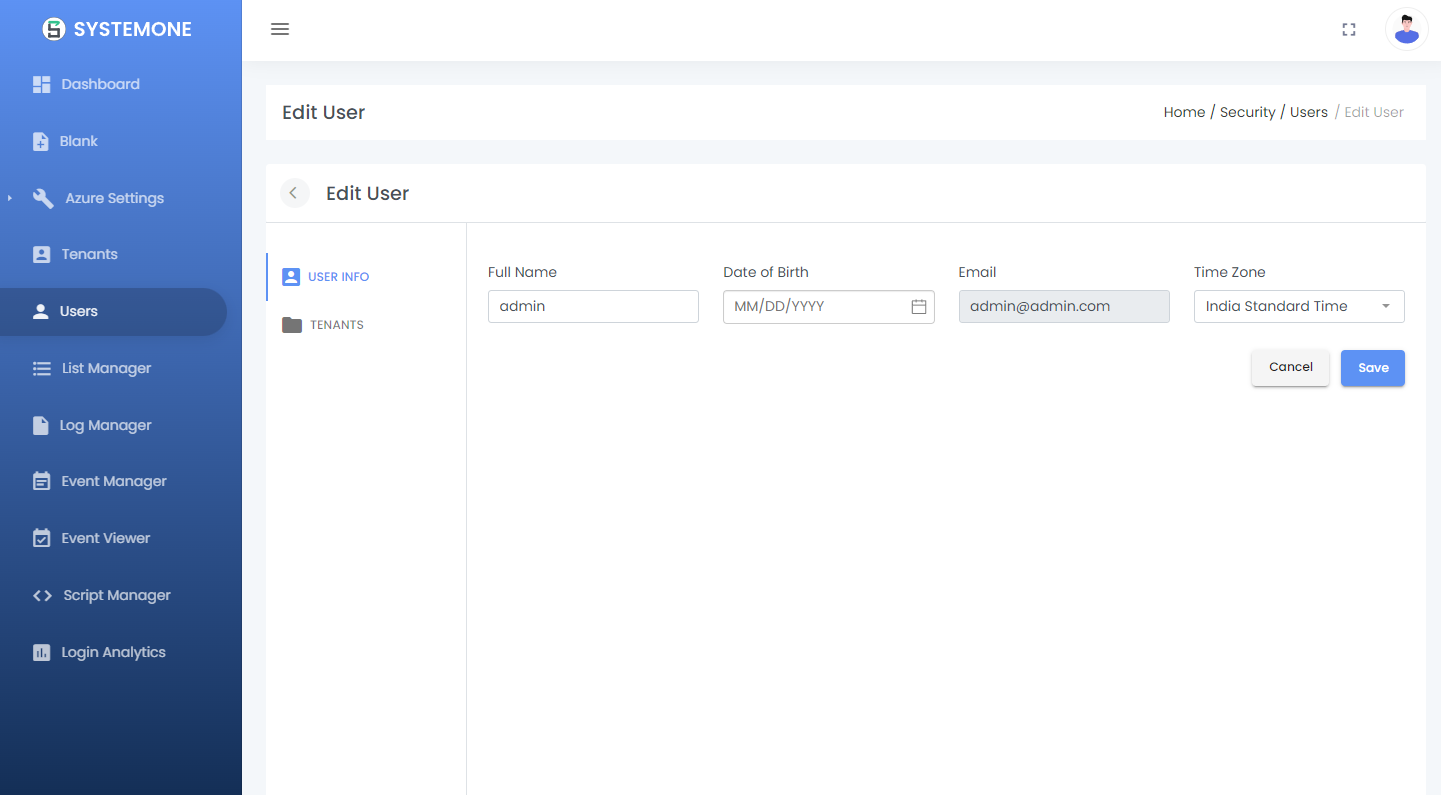
Dev Environment
Pre-Requisites
-
Install Node 14.15.4
- Check the version of node in Command Prompt :
node -v - If you have any other version please uninstall and install the above version.
- Go to Browser paste the following Url
- https://nodejs.org/en/blog/release/v14.15.1/
- Check the version of node in Command Prompt :
-
Install NPM 6.14.10
- Open Cmd and paste the following command
-
Install TypeScript 4.5.5
- Open vscode terminal once open the project and paste the following command
-
.Net core 3.1
- Go to the browser paste the URL
- https://dotnet.microsoft.com/en-us/download/dotnet/thank-you/sdk-3.1.416-windows-x64-installer
-
Vue js 2.4
- Open vscode terminal once open the project and paste the following command
Step 1: Dotnet Environment Setup
-
Path Setup:
properties → Advanced system settings → Environment variables → System variables → New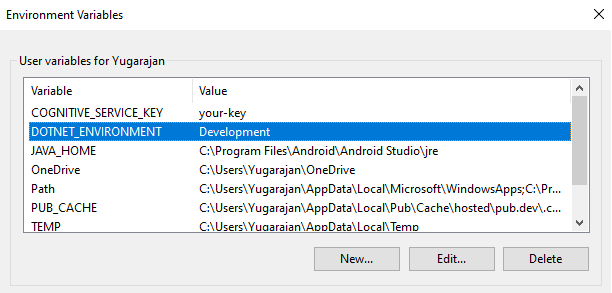
-
Details to be Provided:
Variable name: DOTNET_ENVIRONMENTVariable Value: DevelopmentClick OK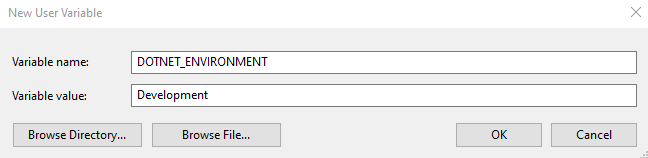
-
Change Date Format:
System settings → Time & Language → Date, time & regional formatting → country or region
: United states → Regional format : English ( United States).RESTART THE MACHINE AFTER COMPLETING STEP 1.
Step 2: Cloning the project from Github
-
Checkout to MAJ/PAL16-Dbcontext branch.
-
Open System1.sln in Visual Studio.
-
Once Project is loaded change the Connection String
-
Do the changes in all projects files - appSetting.Developement.json
- System1ConnectionString
- System1JobConnectionString
- System1IdpConnectionString
-
Give Database name as →
- System1ConnectionString : DS1-001-Admin
- System1JobConnectionString :DS1-001-Jobs
- System1IdpConnectionString : DS1-001-IDP
-
Run each project separately.
(note :While running the project separately if visual studio asks to install SSL Certificate . Then confirm it with YES.)
Step 3: DB-UP Setup
-
In Admin
- System1.DBUP.Admin → RightClick and select “Set as startup project”and run the project.
-
Open SSMS (SQL Server Management Studio)
- Create a New database with the name DS1-001-Jobs
-
In DBUP
- System1.DBUP.Identity → RightClick and select “Set as startup project” and run the project.
-
Set the below project as startup projects and run the same.
- System1.Automations
- System1.Api
- System1.IdentityProvider
- System1.UI.Admin
Step 4: VS-Code Run
-
VS-CODE
-
Open terminal in VS-Code and run the following commands.
-
Set multiple startup projects and run the same
- System1.Automations → START
- System1.Api → START
- System1.IdentityProvider → START
- System1.UI.Admin → START
File → OpenFolder → [Go to System1 Location in file explorer] → Open Admin → Select App and click OK
Step 5: User Set-up
-
Open Admin with the below Credentials
-
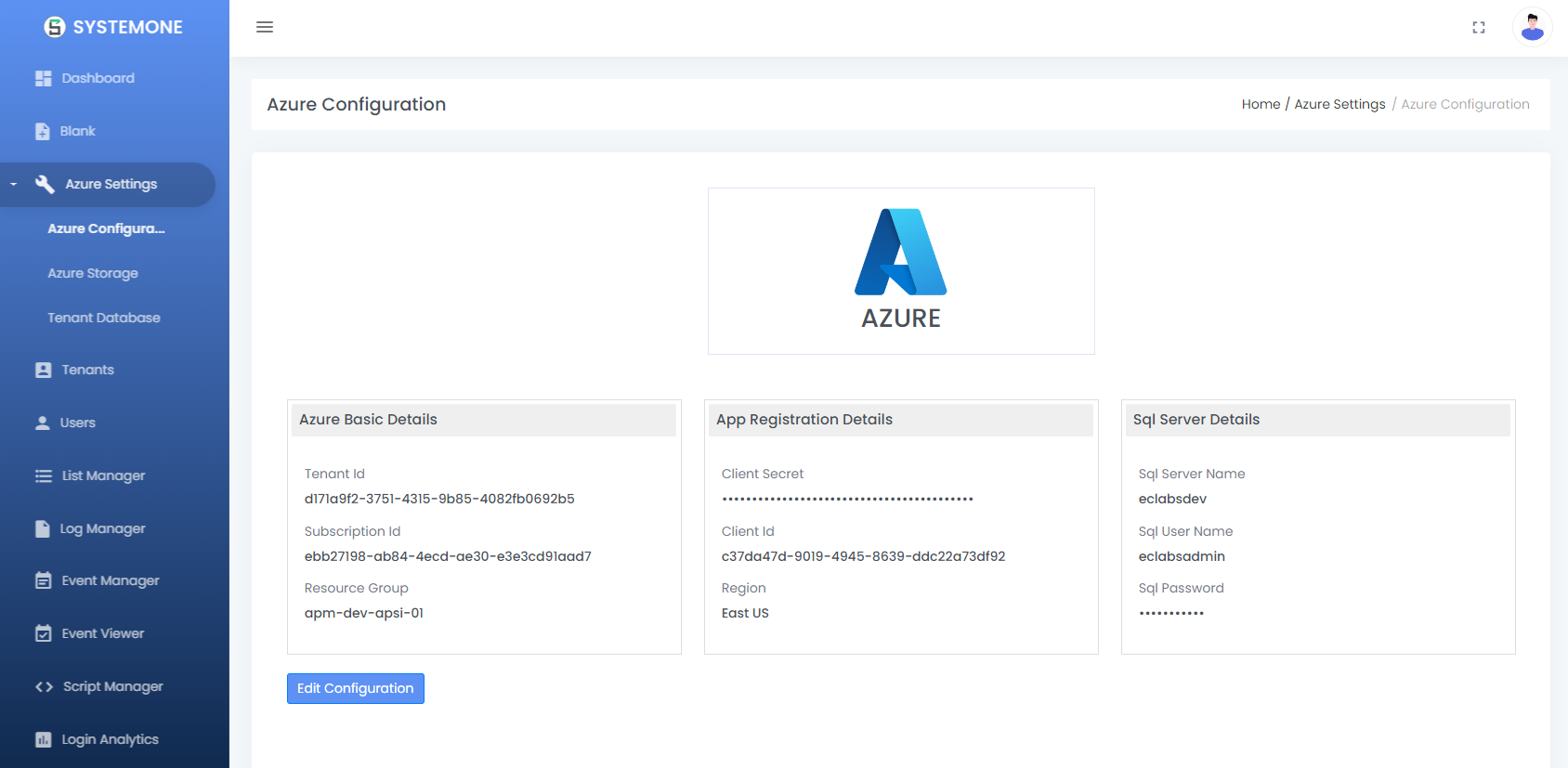
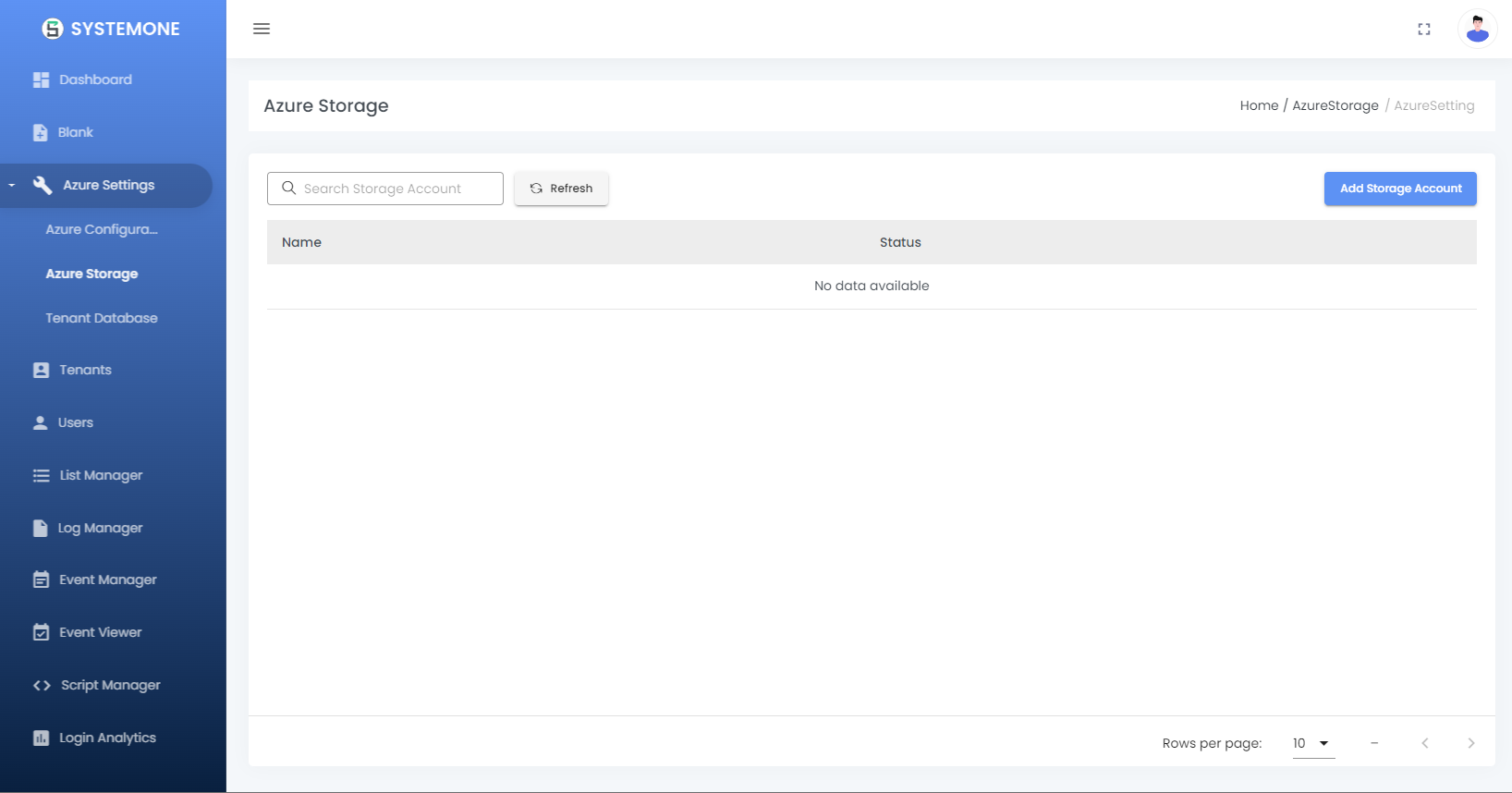
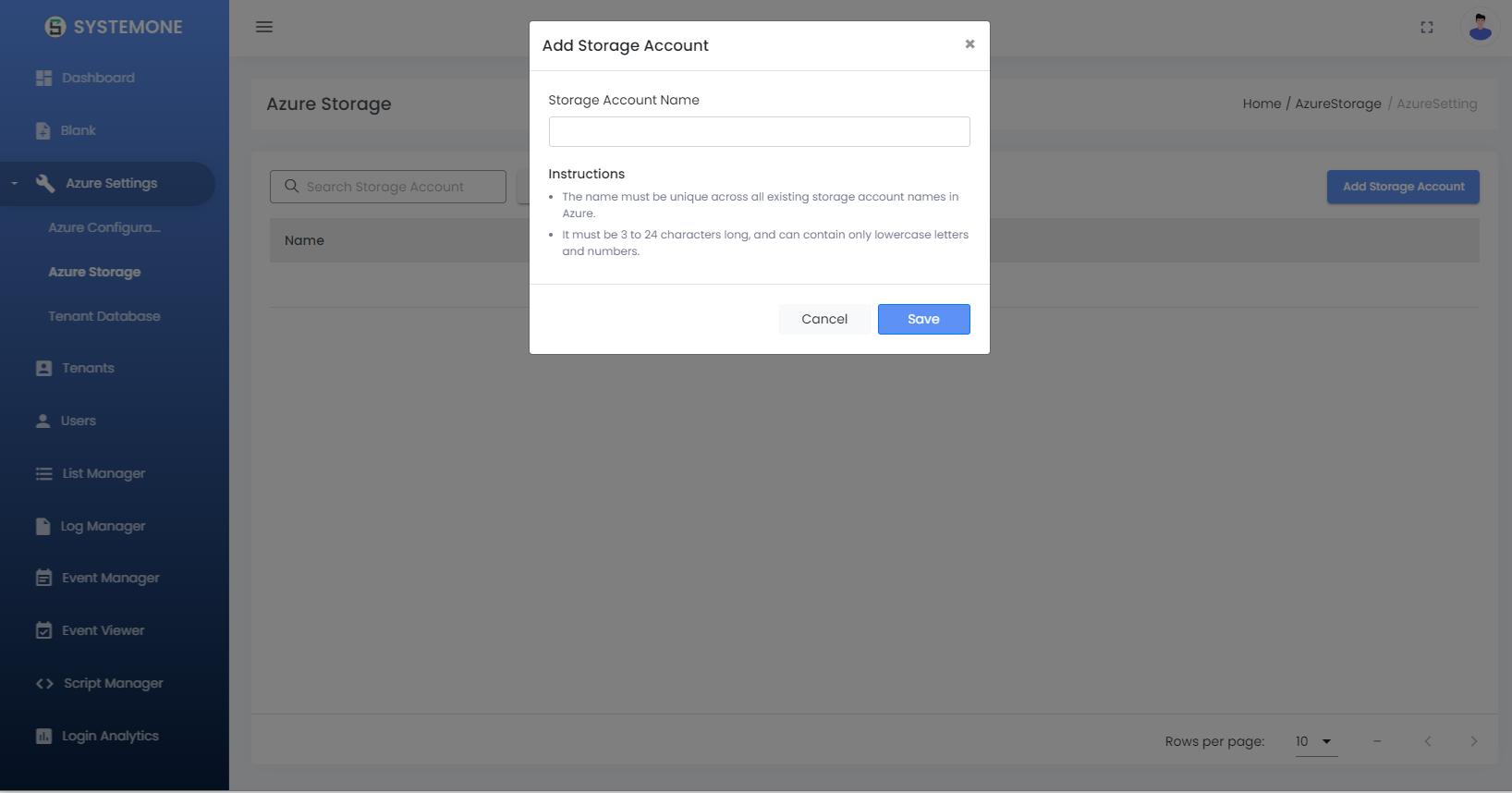
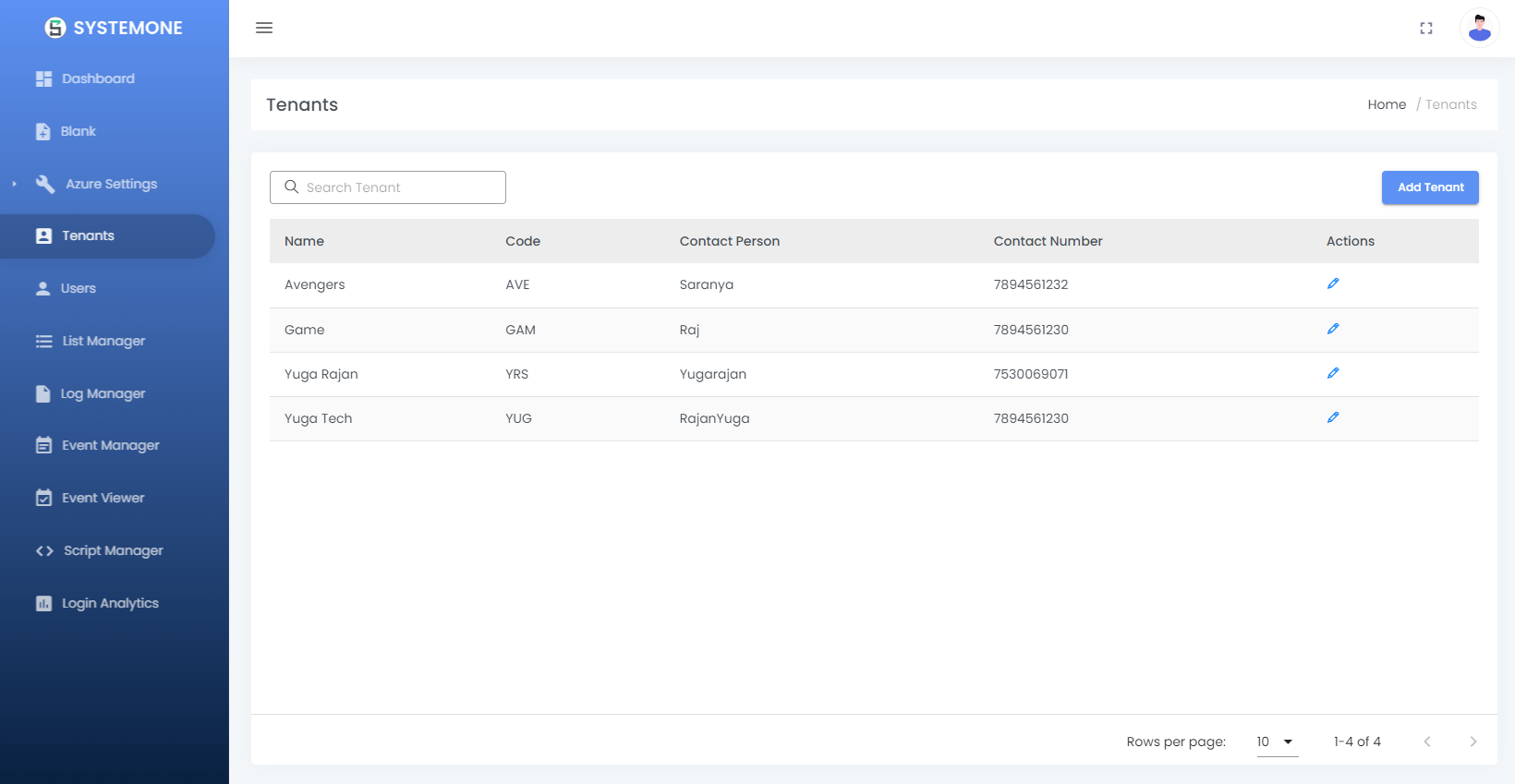
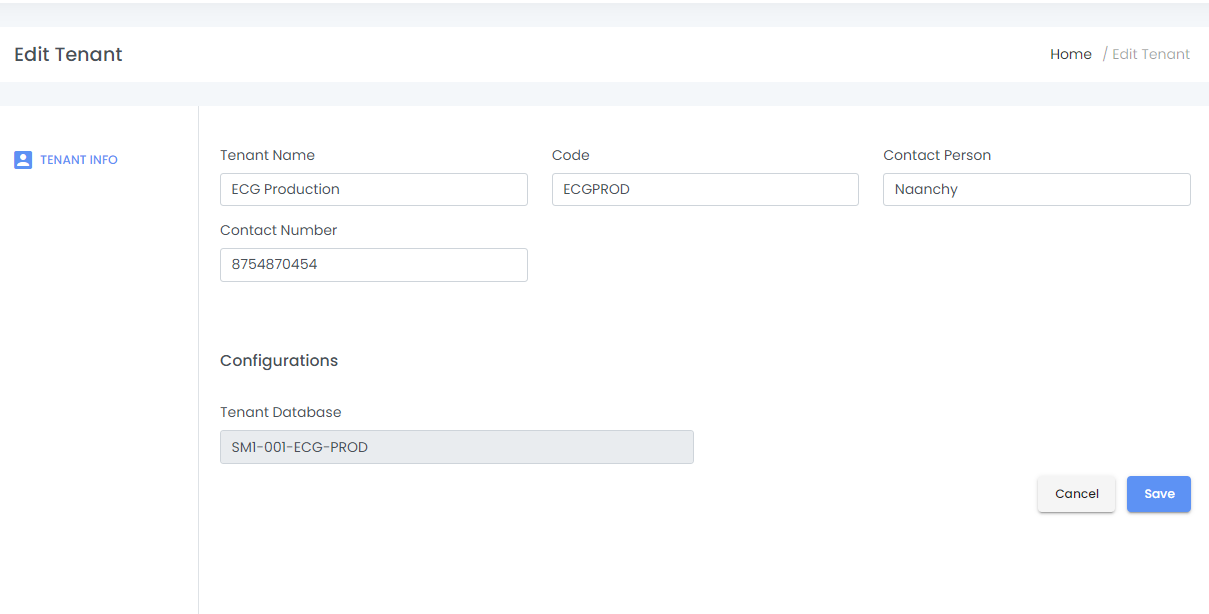
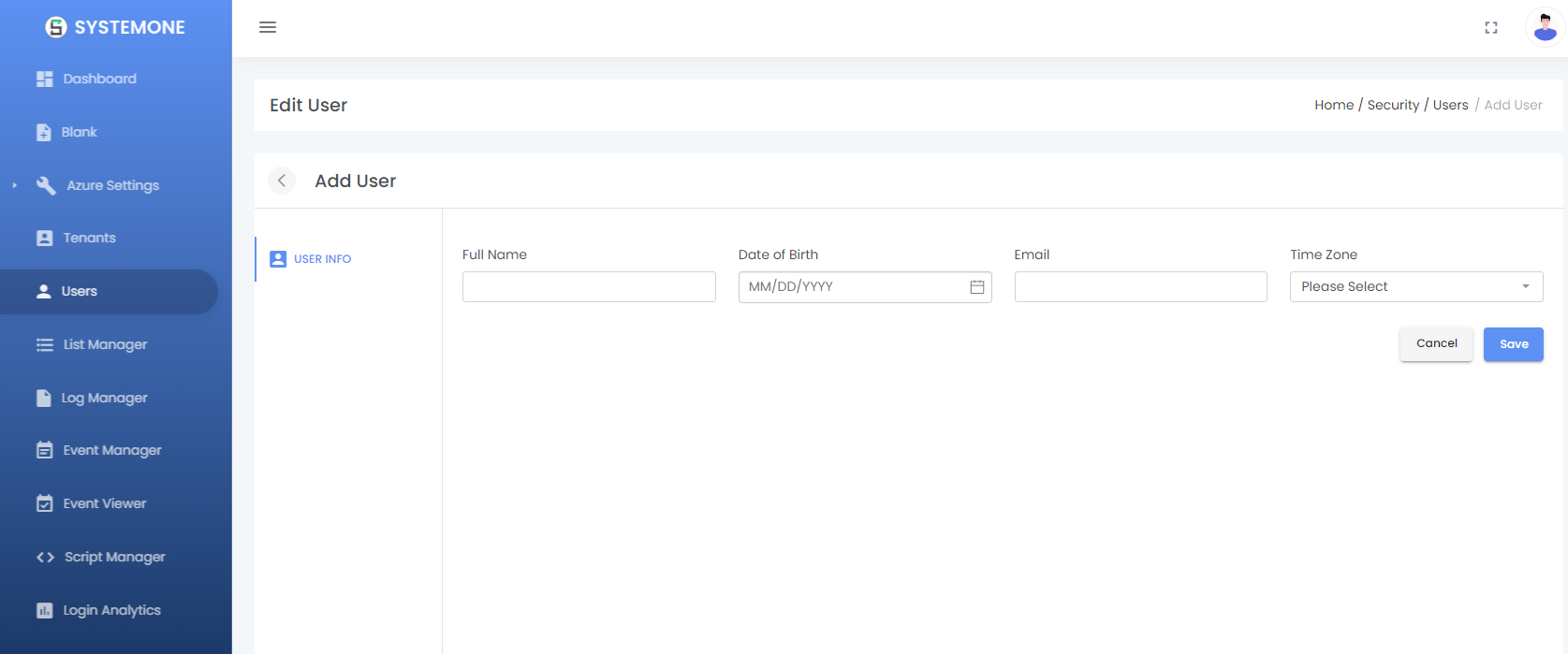
In Tenant User page provide details as in the below screenshot
-
Create User : Security → User → Add user
Step 6: Final Set-up
-
Stop the Project and set System1.DBUP.Admin as startup project and run the same.
-
Set multiple startup projects and run the same.
- System1.Automations → START
- System1.Api → START
- System1.IdentityProvider → START
- System1.UI.Admin → START
-
Login → Security →Users →Edit the user with edit button and assign the tenant value to the user.
-
Terminate the terminal in Visual Studio Code.
-
In Visual studio → run the app → System1.UI.App → set as startup project and run this project.
-
In System1.UI.App → App → Open folder in file explorer → Open this module in Visual studio code.
-
Open terminal in VS-Code and run the following commands.
-
Set multiple startup projects and run the same.
- System1.Automations → START
- System1.Api → START
- System1.IdentityProvider → START
- System1.UI.Admin → START
-
Login to the App with the data found in DB.
-
Go to SSMS → Database → DS1-001-jobs → select * from HangFire.job → you will find the username and one time password generated in this use this data to login to APP.